Installing RoomTools
01Download and install
- Download RoomTools
- Close Revit.
- Run the downloaded RoomTools-setup file.
- Click Install.
- A blue Windows window appears. Click More info in it, then Run anyway.
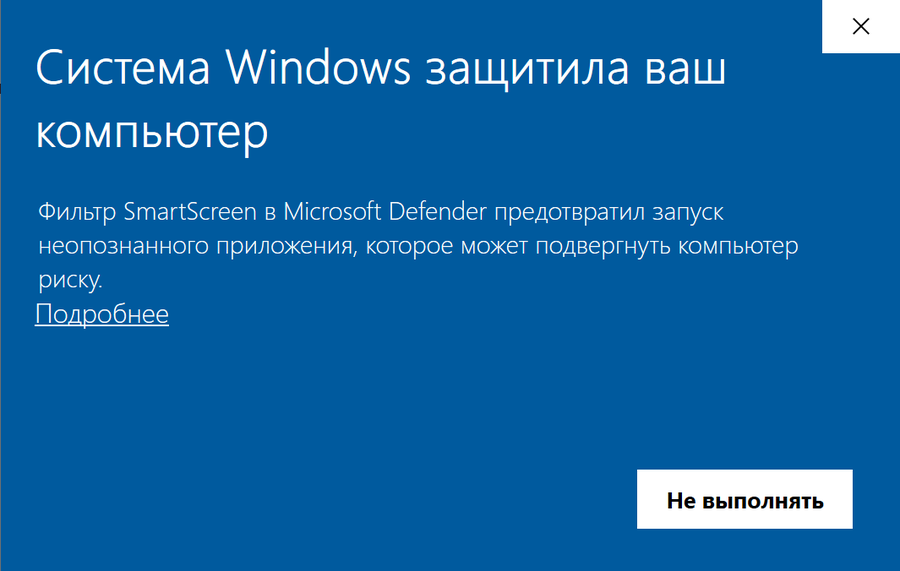
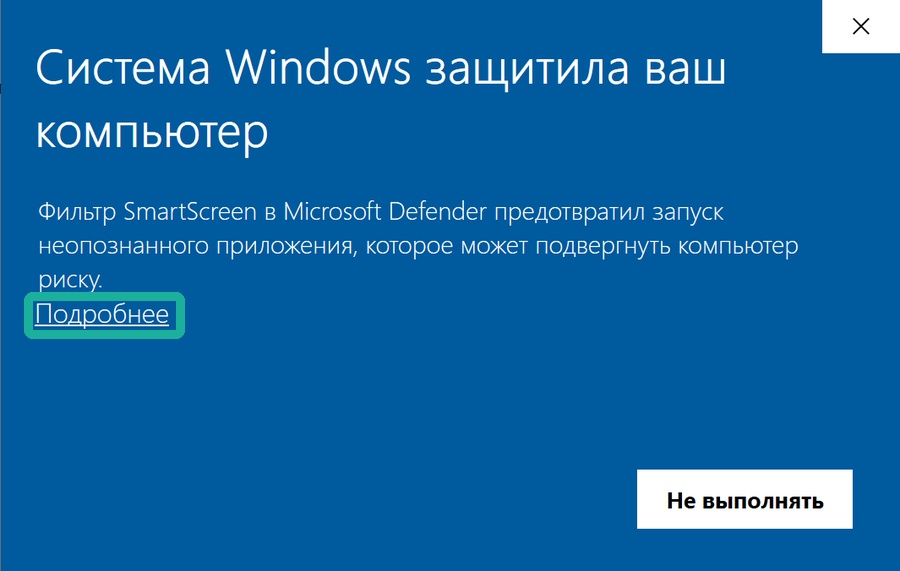
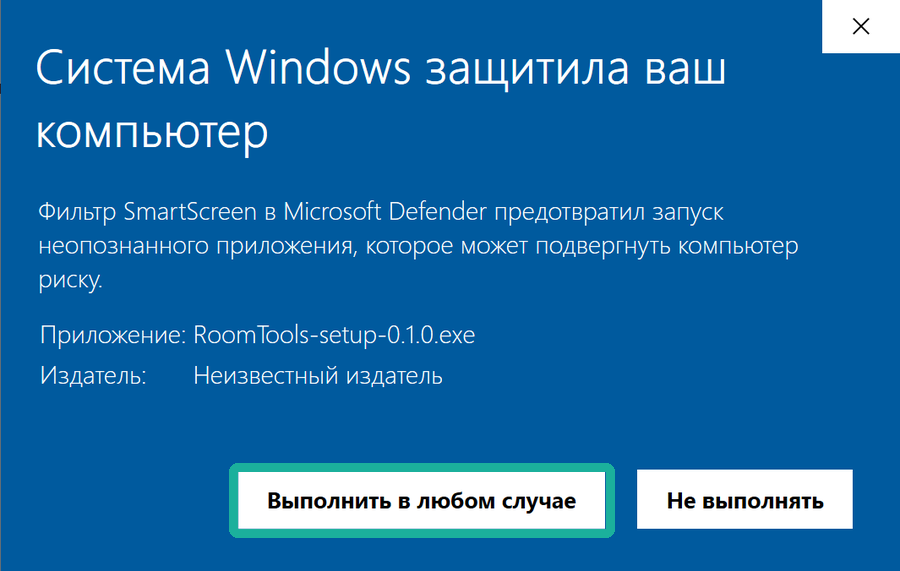
The plugin is installed!
The plugin is installed into the current user's folder, so no administrator rights are needed and the computer does not have to be restarted.
02First launch
- Open Revit.
- The Unsigned Add-in window appears.
- Click Always Load.
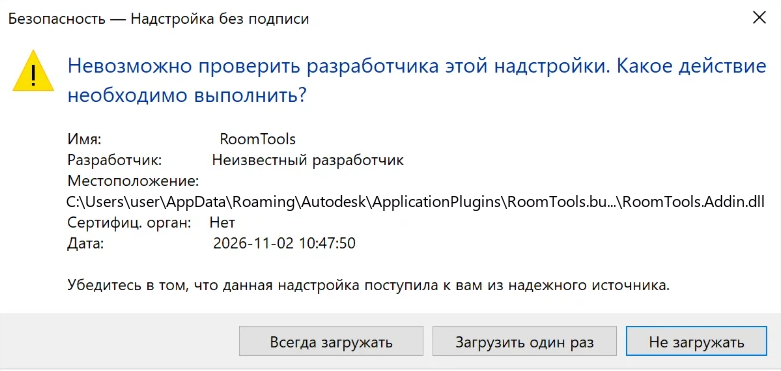
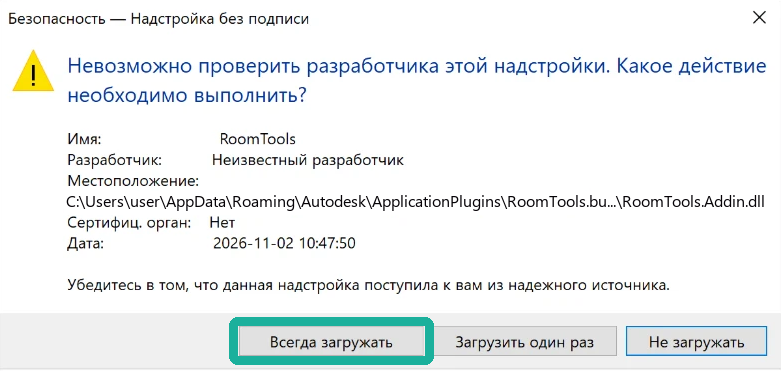
Clicked the wrong button by accident? Nothing is broken: close Revit and open it again, and it will ask once more.
- The RoomTools tab appears on the ribbon.

03Activate
The free tools already work — there is nothing to activate.
- Click any tool — the RoomTools window opens.
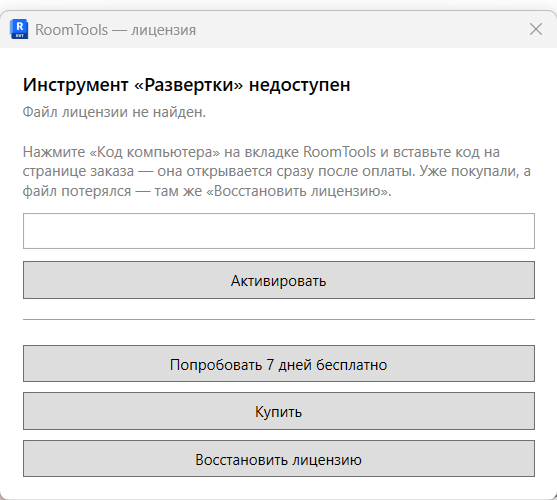
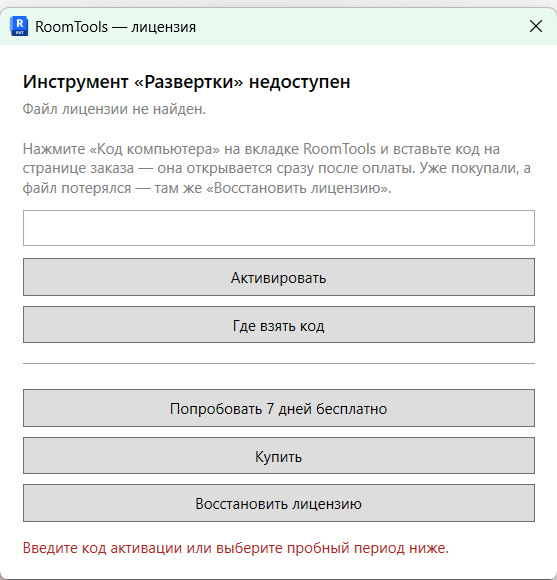
- Enter the code from the order page — it looks like RT-XXXX-XXXX — and click Activate.
- Done: the tool starts by itself.
Internet is needed only for that minute. After that RoomTools works without it.
Want to try it first? In the same window — «Try 7 days for free». No code and no card: every tool opens, and when the week ends the access simply closes.
No internet on the work computer? Then the licence is transferred as a file — the order page has a step «If there is no internet on the work computer». It takes longer, but it works.
Bought another tool? Enter the code of the new order: the licence becomes one, with all your tools. Changed the computer or reinstalled Windows — write to and give the order number.
04How to update
Download the new installer and run it — it installs over the old one. There is no need to remove the previous version.
The licence survives the update: it lives separately from the program, in %APPDATA%\RoomTools. Revit will ask about the signature once — that is expected, the library has changed.
05If the tab did not appear
You clicked «Do Not Load»
The most common reason. Close Revit and open it again — it will ask once more, click «Always Load».
Revit was open during the installation
Close it completely and run the installer again: while Revit is running it holds the plugin files and they cannot be replaced.
A different version of Revit
RoomTools works with Revit 2024, 2025 and 2026. If you need another version, write to us and we will see what can be done.
A button says “License file not found”
The licence has not been obtained yet. In the same window click Activate and enter the code from the order page — or start the trial week. Had a licence and lost it? Restore is right there too.
“The license was issued for another computer”
This happens after reinstalling Windows or on a new computer. Write to — we'll reissue the license for free.
Still not working
Write to : your Revit version, what you see on the screen (a screenshot helps) and what you've already tried.